Projects
On this page
A project is a folder with a home: a Home page that works as a dashboard for everything in it (a cover, a clock, a countdown to the next milestone, the progress of its plan, a calendar of due dates and journal days, a gallery of its pages and your recent work). Use one project per game, per milestone or per team area, and keep its pages, canvases and plans inside it.
A project is an ordinary MOSAIC folder with a few extra settings, and its Home page is an ordinary page: everything you know from Pages works on it, and you can add, move or remove any widget.
Creating a project
Any of these creates a project:
- The + on the Projects section header of the sidebar, or right-click that header > New Project.
- The arrow next to + New page at the bottom of the sidebar (or the arrow next to + in the tab bar) > Project.
- The Project button at the top of All documents.
- New project in the command palette (Ctrl+K).
- Right-click a folder > Turn into Project (see Folders and projects).
A new project is created in one undo step and contains:
| Part | What it is |
|---|---|
| The project folder | Listed under Projects in the sidebar, with the Rocket icon and a colour of its own (each new project takes the next colour of the palette) |
| A plan | "Name Plan", with the usual four statuses, inside the project |
| The Home page | A page titled with the project's name, filled with the dashboard below, and linked to the project's plan |
MOSAIC opens the Home page and starts renaming the project in the sidebar: type its name and press Enter. The Home page takes the same name.
Projects in the sidebar
The Projects section sits above Folders and is always shown, so a new project is one click away. Each project is a small banner: a rounded row painted with the project's backdrop, with the project's icon on a tile and its name, so your projects are easy to tell apart at a glance:
- Click the banner to open the project's Home page.
- The chevron folds and unfolds the project's contents: its documents, plans and subfolders (the Home page itself is not listed; the banner opens it).
- On hover, + creates a page, a page from a template, a References board, a plan or a folder inside the project, the palette button opens Project Settings and ... opens the project menu. The buttons stay while their menu or panel is open.
- Right-click the row for the project menu.
- Drag documents onto a project row to move them into the project, like any folder.
Folders that are projects are listed only under Projects, not under Folders.
All documents also shows your projects at the top, as cards with the project icon and colour and the number of documents inside. Click a card to open its Home page; right-click it for the project menu.
The project menu
Right-click a project (sidebar row or card), or use its ... button:
| Entry | What it does |
|---|---|
| Open Home | Opens the Home page (MOSAIC makes a new one if it was deleted) |
| New in Project | Page, page from a template, References board, plan or folder inside the project |
| Project Settings | The settings panel |
| Rename (F2) | Renames the project. The Home page follows while it still has the project's old name |
| Backdrop | The painted background of the project's banner in the sidebar (see Backdrops) |
| Color | The colour of the project's backdrop, icon and card |
| Convert to Folder | Turns the project back into a plain folder (see below) |
| Delete Project | Moves every document of the project to the MOSAIC trash and removes the project, after a confirmation. Ctrl+Z undoes it |
Project settings
Project Settings (the palette button of the banner, or the project menu) opens a small panel with a live preview of the banner at the top:
| Setting | What it does |
|---|---|
| Name | The project's name; press Enter to apply. The Home page title follows it |
| Backdrop | The painted background of the banner, with a live preview of each choice (see Backdrops) |
| Colour | The project colour: preset swatches (No colour first, the current colour ringed) or + for any colour. It tints the backdrop, the icon and the card |
| Icon | A grid of the page icons; the chosen icon is used in the sidebar, on the project card and on the Home page |
| Cover | Choose Image... picks an image file (copied into the workspace's media folder) as the project's cover, on the Home page header and the banner; Remove takes it away from both. A cover set on the Home page header shows here too (see Project cover) |
| Open Home | Opens the Home page to arrange its widgets |
Every change is one undo step.
Backdrops
| Backdrop | Look |
|---|---|
| Auto (default) | The cover image when the project has one, else Aurora |
| Aurora | Soft glows of the project colour and two neighbouring hues |
| Mesh | A gradient mesh of shades of the project colour |
| Dots | A dot grid that fades out from a light spot |
| Lines | Fine diagonal hatching |
| Waves | A few flowing wave lines |
| Solid | A plain tint of the project colour |
| Cover | The project's cover image (choose one under Cover; Aurora until then) |
Backdrops are painted by MOSAIC and tinted with the project colour; they are saved with the project in the workspace, so the whole team sees the same banners.
Project cover
A project has one cover, shared by its Home page and its banner:
- A cover set on the header of the Home page (hover the top of the page, or right-click the page > Add Cover... / Change Cover...) is also the project's cover: the sidebar banner shows it with the Cover or Auto backdrop, and the preview and the Cover row of Project Settings show it too.
- Replacing or removing the cover on the Home page does the same for the banner. One Ctrl+Z restores both.
- Editing the Home page without touching its cover never clears a cover chosen with Choose Image... in Project Settings.
- Projects whose Home page got a cover in an earlier version pick it up on the next start (it is saved with your next change).
- The cover image loads in the background: the banner shows Aurora for a moment and repaints as soon as the image is ready. A photo is shaded lightly so the project name stays readable on it.
The Home page
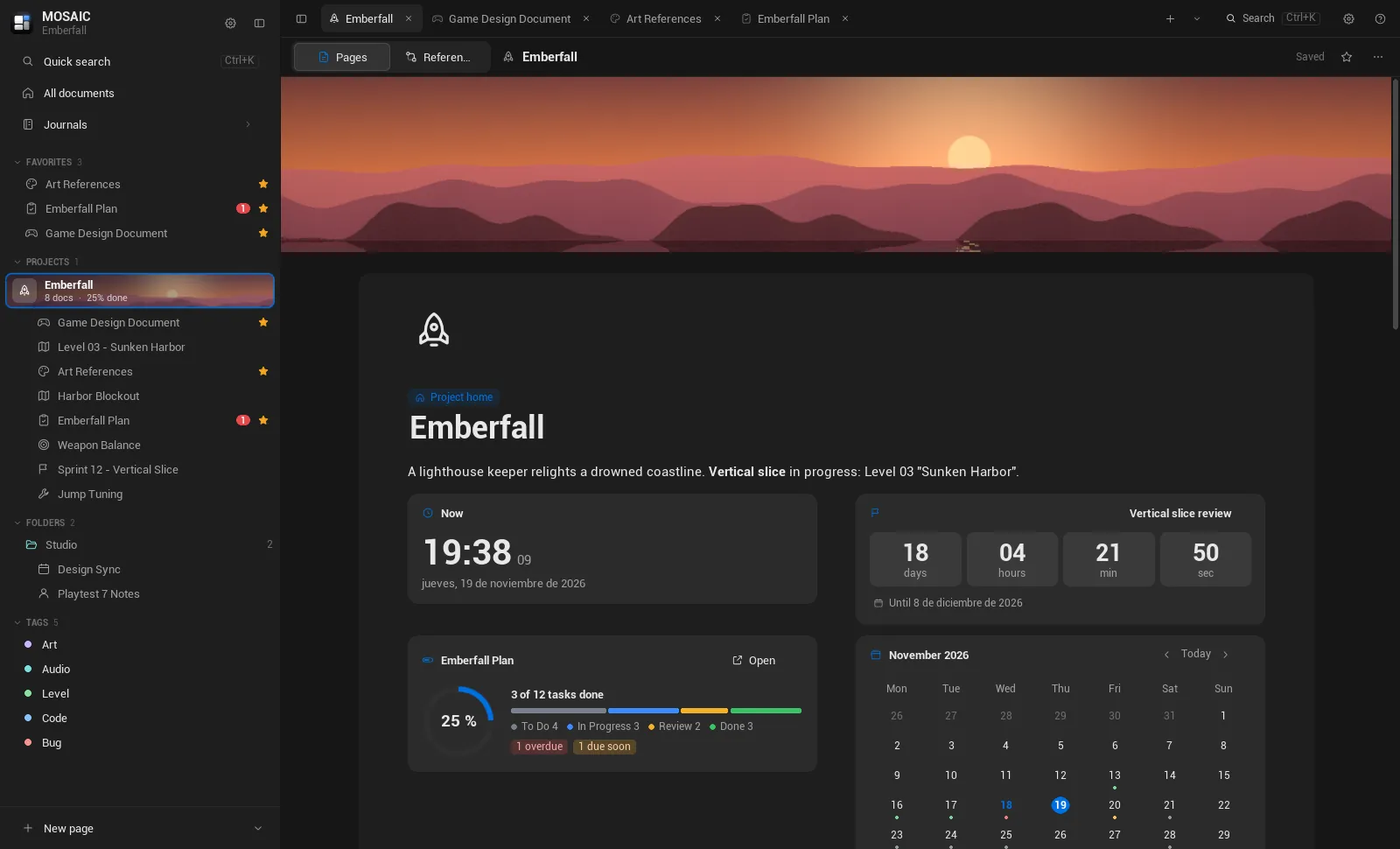
The Home page is a page with a few differences:
It uses a wider column (up to about 980 pixels instead of 720) so two widgets fit side by side.
It is listed as Project home in All documents, and it is not listed under the project in the sidebar (the project row opens it).
A new Home page has the content card on, a full-width cover area and these blocks:
A short introduction ("Everything about Name at a glance...").
Clock and Countdown ("Next milestone") side by side.
Plan Progress and Calendar of the project's plan, side by side.
A Pages heading with the Pages Gallery of the project.
Recent Documents and Favorites side by side.
A Notes heading with three starter to-dos (set the milestone date, create the first pages from a template, add a cover).
Change anything: write between the widgets, delete the ones you do not need, add others, move them by their header or the block handle (see Reordering blocks), add a cover (hover the top of the page, or right-click the page > Add Cover...) and adjust it (see Cover).
Widgets
Widgets are page blocks that show live information. Each one has a title bar with an options button (or right-click anywhere on the widget) that opens the block menu with the widget's options; the button stays while the menu is open. Drag a widget by its title bar (or by the block handle) to move it: a card follows the pointer and a gap opens where it will land (see Reordering blocks). Widgets are drawn as cards a clear step above the page, with their numbers and labels in readable text colours. They update on their own: the clock every second, the plan widgets as soon as a task changes, the lists when documents are opened or starred.
| Widget | Shows | Options |
|---|---|---|
| Clock | The current time and the date | Digital, or Analog and Digital |
| Countdown | Days, hours, minutes and seconds left until a date, with a label. On the day it says Today!, afterwards Reached N days ago | Set Target Date... (or click the date under the counter); type the label in the widget (Milestone name). A new countdown aims 30 days ahead |
| Calendar | A month grid with coloured marks on the days with tasks due (colour = due state: overdue, due soon, upcoming, done), the journal days in bold, today highlighted, and an Upcoming list of the next four open tasks (including those overdue by up to a week) | Plan (one plan or All Plans). Previous / next month and Today buttons; hover a day for its tasks; click a day to open its journal page (created when needed); click an upcoming task to open its plan |
| Plan Progress | A ring with the percentage of tasks done, "n of m tasks done", a bar with one segment per status and its count, and overdue / due soon chips | Plan (one plan or All Plans). Open opens the plan. Without any plan, New Plan creates one in the page's folder and links it |
| Recent Documents | The documents you opened last (6 by default) | Items Shown: 4, 6, 8, 12 or 16 |
| Favorites | Your starred documents (6 by default) | Items Shown |
| Pages Gallery | Cards of the documents in the same folder or project, with their cover or icon, kind and plan progress (8 by default), and a New page card that creates a page there and opens it | Items Shown |
Every widget also has Half Width (side by side) in its menu (see below), and the usual block entries (duplicate, copy link, move, delete).
A plan widget whose plan was deleted shows its empty state: choose another plan in Plan, or All Plans.
Two-column dashboards
Turn on Half Width (side by side) for a widget, and for the widget just after it: the two share one row, as two columns. A half-width widget without a half-width neighbour stays alone on its row. Turn the option off to give a widget the whole width again. Only widgets can be half width; text blocks always use the whole column.
Folders and projects
- Turn a folder into a project: right-click the folder > Turn into Project. The folder moves to the Projects section and gets a Home page (linked to the first plan inside the folder, or to every plan when it has none). Its documents stay where they are.
- Turn a project back into a folder: project menu > Convert to Folder. The folder moves back under Folders; every document stays, including the Home page, which becomes a normal page (its widgets keep working).
- Delete a project: project menu > Delete Project (everything goes to the trash and can be restored).
All three are undo steps.
Files
A project is stored in workspace.json with its folder (icon, colour, cover and the id of its Home page). The Home page is a normal document file in boards/, and the project's plan a normal file in plans/, so projects go through source control like everything else. See Workspace.